> ## Documentation Index
> Fetch the complete documentation index at: https://docs.memmachine.ai/llms.txt
> Use this file to discover all available pages before exploring further.
# Login and Registration
> The MemMachine Platform User Guide - Login and Registration
Welcome to the **MemMachine Platform User Guide**! This page provides step-by-step instructions on how to **register** for a new account and **log in** to the MemMachine Platform.
### Accessing the Platform
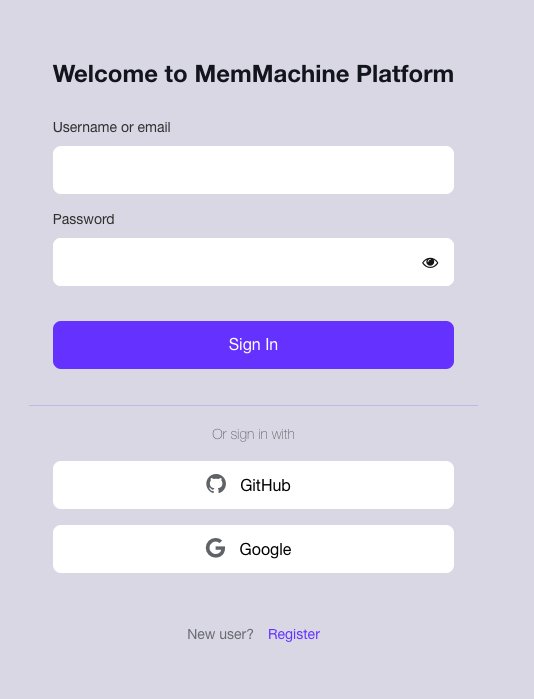
Navigate to the MemMachine Platform URL (e.g., `https://console.memmachine.ai`) in your web browser. You will be presented with the primary **Login** screen:
 ***
## New User Registration
If you are a new user, you must first register for an account using one of the three available methods: **Username/Email**, **GitHub**, or **Google Authorization**.
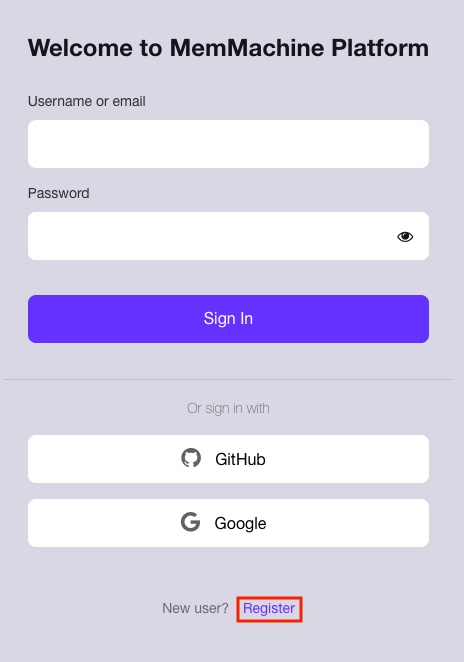
On the main login screen, click the **Register** link located at the bottom of the form.
***
## New User Registration
If you are a new user, you must first register for an account using one of the three available methods: **Username/Email**, **GitHub**, or **Google Authorization**.
On the main login screen, click the **Register** link located at the bottom of the form.
 Fill out all fields marked with an asterisk (**\***) on the Registration form.
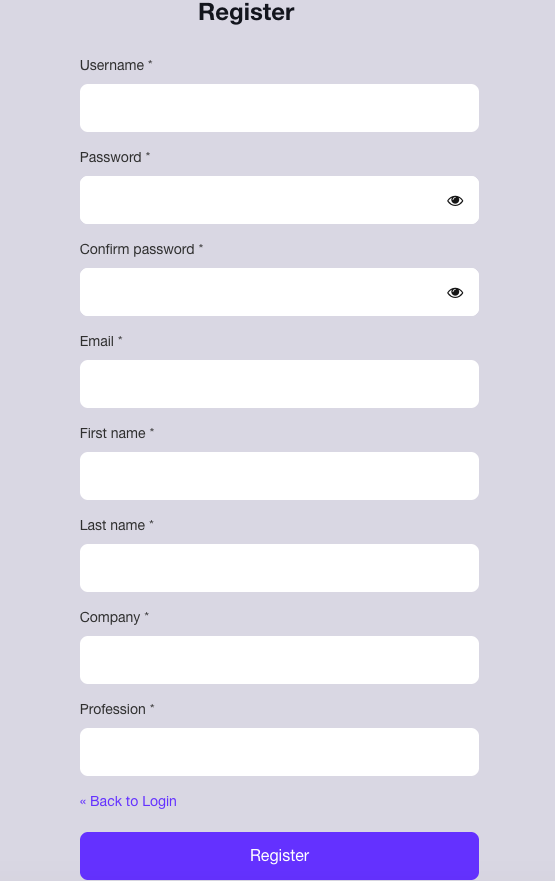 After completing the required fields, click the blue **Register** button to finalize your registration. You will then be automatically directed to the **MemMachine Platform Console**.
On the login screen, click the **GitHub** button to log in using your existing GitHub account credentials.
After completing the required fields, click the blue **Register** button to finalize your registration. You will then be automatically directed to the **MemMachine Platform Console**.
On the login screen, click the **GitHub** button to log in using your existing GitHub account credentials.
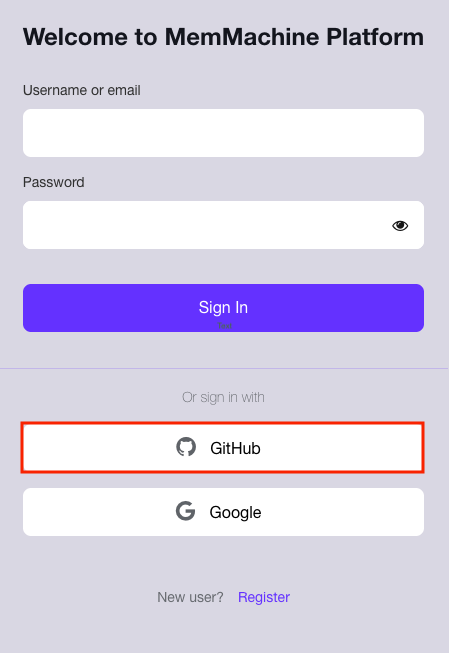 You will be redirected to a GitHub Authorization page. This page requests authorization to link the MemMachine Platform with your GitHub account.
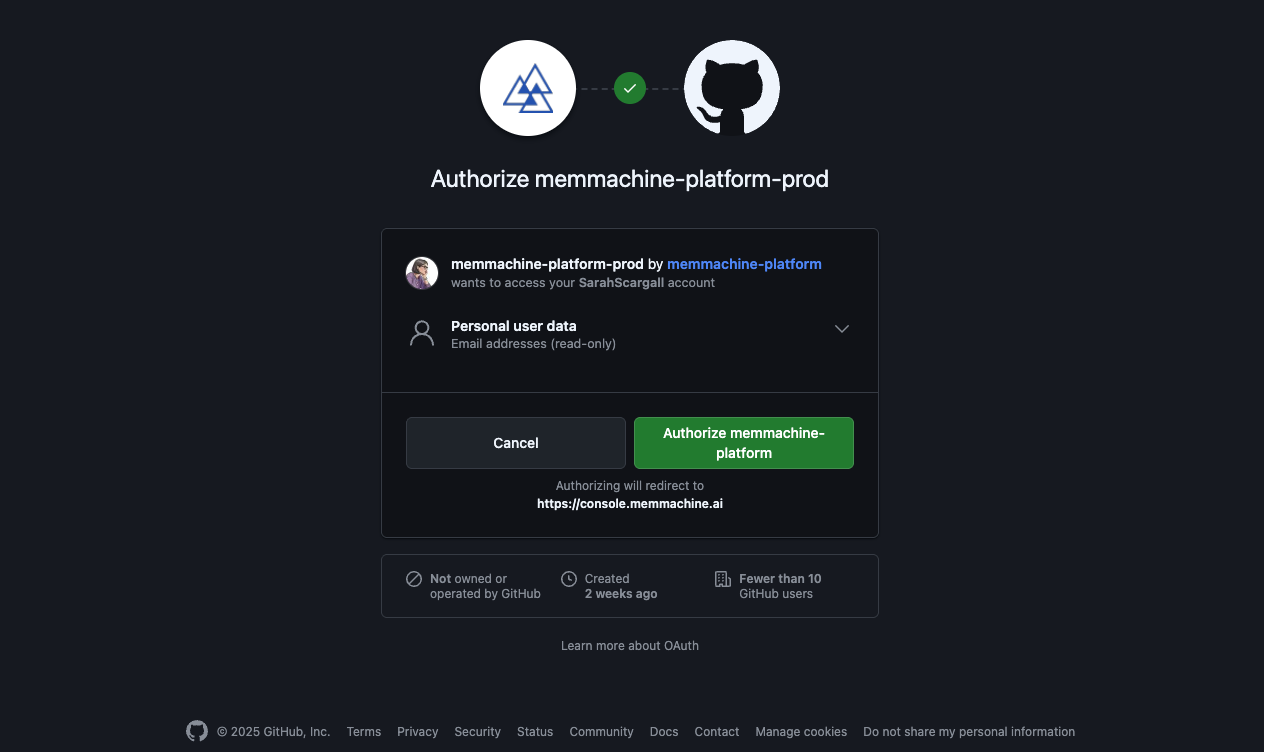 Click the bright green **Authorize memmachine-platform** button.
You will be taken to the **MemMachine Account Update Form**. This form pre-populates some information from your GitHub profile and requires you to enter your **Company** and **Profession**.
GitHub will send you an email confirmation regarding this authorization: "A third-party OAuth application (memmachine-platform-prod) with user:email scopes was recently authorized to access your account."
Once you have completed the form, click the **Submit** button. Registration will be complete, and you will be directed to the **MemMachine Platform Console**.
Click the **Google** button on the login screen (highlighted in the image below) to begin registration via your Google account.
Click the bright green **Authorize memmachine-platform** button.
You will be taken to the **MemMachine Account Update Form**. This form pre-populates some information from your GitHub profile and requires you to enter your **Company** and **Profession**.
GitHub will send you an email confirmation regarding this authorization: "A third-party OAuth application (memmachine-platform-prod) with user:email scopes was recently authorized to access your account."
Once you have completed the form, click the **Submit** button. Registration will be complete, and you will be directed to the **MemMachine Platform Console**.
Click the **Google** button on the login screen (highlighted in the image below) to begin registration via your Google account.
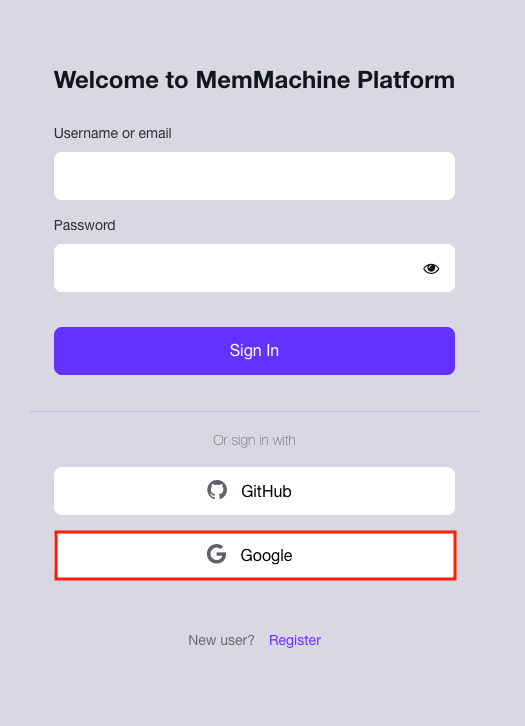 Choose the Google Account you wish to use for logging into the MemMachine Platform.
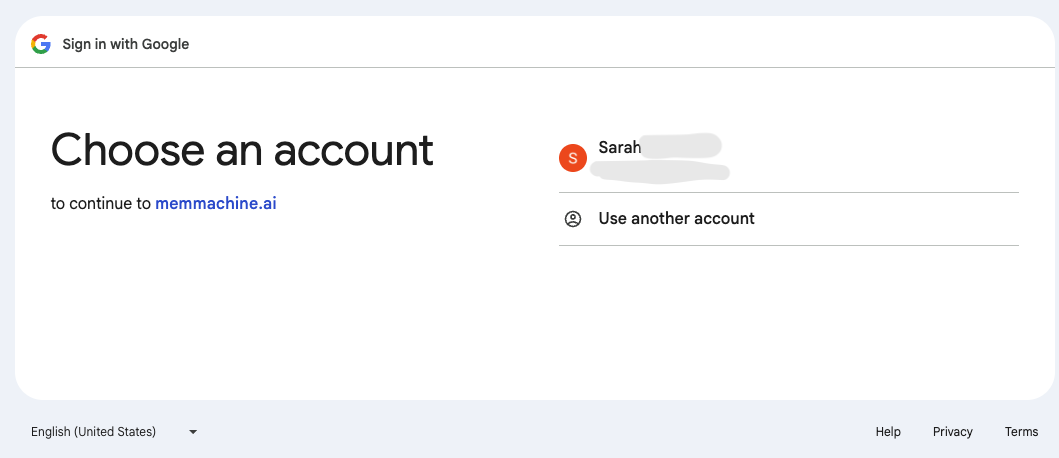 Click on the desired account. The background will briefly turn light blue to indicate your selection.
Google will display a secondary Authorization Verification page.
Click on the desired account. The background will briefly turn light blue to indicate your selection.
Google will display a secondary Authorization Verification page.
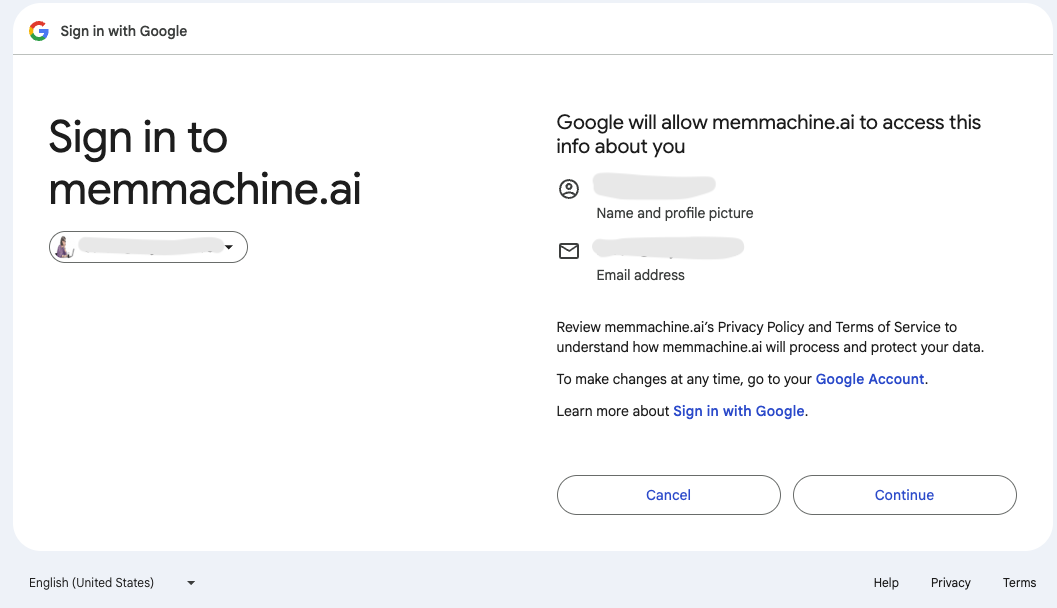 If the displayed account is correct, click the **Continue** button.
You will be redirected back to the MemMachine Platform to the **Account Update Form**. This step verifies your account information and completes the registration process.
If the displayed account is correct, click the **Continue** button.
You will be redirected back to the MemMachine Platform to the **Account Update Form**. This step verifies your account information and completes the registration process.
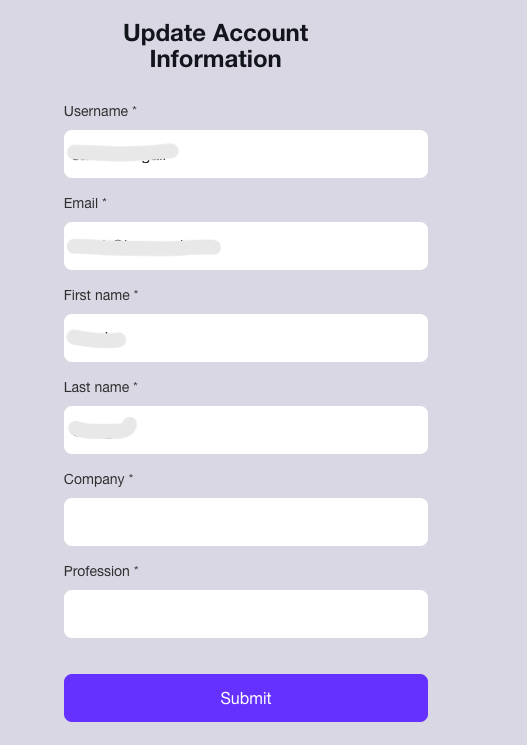 Fill out all required fields (**\***) and click the **Submit** button to finalize your registration.
***
## User Login
Once your account is registered, you can log in directly using the method you established during registration (Username/Email, GitHub, or Google). Simply return to the main login screen and enter your credentials or click the appropriate third-party login button.
Fill out all required fields (**\***) and click the **Submit** button to finalize your registration.
***
## User Login
Once your account is registered, you can log in directly using the method you established during registration (Username/Email, GitHub, or Google). Simply return to the main login screen and enter your credentials or click the appropriate third-party login button.