> ## Documentation Index
> Fetch the complete documentation index at: https://docs.memmachine.ai/llms.txt
> Use this file to discover all available pages before exploring further.
# MCP
> MCP API Examples for MemMachine
# MCP API Examples
## Hello World: A Guide to the MemMachine MCP Server API
This guide provides a quick and simple way to get started with the MemMachine Model Content Protocol (MCP)
Server API using `curl` commands. It can also be found in our [Quick Start Guide](https://docs.memmachine.ai/getting_started/quickstart).
### Prerequisites
First, ensure your stand alone MCP server is up and running. You can use this sample command to start it:
```
MEMORY_CONFIG=config.yml uv run memmachine-mcp-http --host localhost --port 8080
```
In which `config.yml` is your MemMachine configuration file. `localhost` and `8080` are the host and port
where the MCP server will listen for requests.
If you want to check that the server is running correctly, you can use following steps to query the tools
available on the server with `curl`.
We need a session id to work with the MCP server. We can obtain one by establishing a Server-Sent Events (SSE)
connection.
```
curl -v -N http://localhost:8080/mcp/ -H "Accept: text/event-stream"
```
Here is a sample response you might see:
```
* Host localhost:8080 was resolved.
* IPv6: ::1
* IPv4: 127.0.0.1
* Trying [::1]:8080...
* connect to ::1 port 8080 from ::1 port 62212 failed: Connection refused
* Trying 127.0.0.1:8080...
* Connected to localhost (127.0.0.1) port 8080
> GET /mcp/ HTTP/1.1
> Host: localhost:8080
> User-Agent: curl/8.7.1
> Accept: text/event-stream
>
* Request completely sent off
< HTTP/1.1 400 Bad Request
< date: Fri, 31 Oct 2025 21:58:56 GMT
< server: uvicorn
< content-type: application/json
< mcp-session-id: 8f82399b29ba42d495ff44d5a9cf7862
< content-length: 105
<
{"jsonrpc":"2.0","id":"server-error","error":{"code":-32600,"message":"Bad Request: Missing session ID"}}
```
In this output, looking for the `mcp-session-id` header, you can see the session ID is `8f82399b29ba42d495ff44d5a9cf7862`.
Now that we have a session id, we can initialize the session by sending an `initialize` request to the MCP server.
```
curl http://localhost:8080/mcp/ \
-H "Content-Type: application/json" \
-H "Accept: application/json, text/event-stream" \
-H "mcp-session-id: 8f82399b29ba42d495ff44d5a9cf7862" \
-d '{
"jsonrpc": "2.0",
"id": 1,
"method": "initialize",
"params": {
"protocolVersion": "2024-11-05",
"capabilities": {},
"clientInfo": {
"name": "curl-client",
"version": "1.0.0"
}
}
}'
```
Here is a sample response you might see:
```
event: message
data:
{
"jsonrpc": "2.0",
"id": 1,
"result": {
"protocolVersion": "2024-11-05",
"capabilities": {
"experimental": {},
"prompts": {
"listChanged": true
},
"resources": {
"subscribe": false,
"listChanged": true
},
"tools": {
"listChanged": true
}
},
"serverInfo": {
"name": "MemMachine",
"version": "1.16.0"
}
}
}
```
After initializing the session, we need to send an `initialized` notification to the MCP server.
```
curl http://localhost:8080/mcp/ \
-H "Content-Type: application/json" \
-H "Accept: application/json, text/event-stream" \
-H "mcp-session-id: 8f82399b29ba42d495ff44d5a9cf7862" \
-d '{
"jsonrpc": "2.0",
"method": "notifications/initialized"
}'
```
The request should succeed without any errors.
Now we can list the available tools by sending a `tools/list` request to the MCP server.
```
curl http://localhost:8080/mcp/ \
-H "Content-Type: application/json" \
-H "Accept: application/json, text/event-stream" \
-H "mcp-session-id: 8f82399b29ba42d495ff44d5a9cf7862" -d '{
"jsonrpc": "2.0",
"id": 2,
"method": "tools/list",
"params": {}
}'
```
Here is a sample response you might see:
```
event: message
data:
{
"jsonrpc": "2.0",
"id": 2,
"result": {
"tools": [
{
"name": "add_memory",
"description": "Store important new information about the user or conversation into memory. Use this automatically whenever the user shares new facts, preferences, plans, emotions, or other details that could be useful for future context. Include the **full conversation context** in the `content` field — not just a snippet. This tool writes to both short-term (episodic) and long-term (profile) memory, so that future interactions can recall relevant background knowledge even across different sessions.",
"inputSchema": {
"$defs": {
"AddMemoryParam": {
"description": "Parameters for adding memory.\n\nThis model is used by chatbots or agents to store important information\ninto memory for a specific user. The content should contain the **full\nconversational or contextual summary**, not just a short fragment.\n\nChatbots should call this when they learn new facts about the user,\nobserve recurring behaviors, or summarize recent discussions.",
...
}
```
### Working with Claude Desktop App
The Claude Desktop App allows the developer to easily interact with the MCP server.
To configure the Claude Desktop App to connect to your MCP server, follow these steps:
1. Open the Claude Desktop App.
2. Navigate to the settings section.
3. Navigate to the `Developer` tab.
4. Click `Edit Config` and it will pop up the location of the configuration file.
5. The configuration file is named `claude_desktop_config.json`. Edit the file to include the MCP stdio mode.
#### Option 1: Using Docker Compose (Recommended)
This is the recommended method for running MemMachine locally using Docker. It's the easiest way to get started.
**Step 1: Start MemMachine with Docker Compose**
First, start MemMachine using the provided script:
```
./memmachine-compose.sh
```
This will start all required services (PostgreSQL, Neo4j, and MemMachine) in Docker containers. The MemMachine container will be named `memmachine-app`.
**Step 2: Configure Claude Desktop**
Edit `claude_desktop_config.json` with the following configuration:
```
{
"mcpServers": {
"memmachine": {
"command": "docker",
"args": [
"exec",
"-e",
"MM_USER_ID=Your Name",
"-i",
"memmachine-app",
"/app/.venv/bin/memmachine-mcp-stdio"
],
"env": {
"MEMORY_CONFIG": "/app/configuration.yml",
"PYTHONUNBUFFERED": "1"
}
}
}
}
```
Replace `Your Name` with your desired user ID. The `memmachine-app` is the default container name created by the Docker Compose setup.
**Configuration Details:**
* `memmachine-app`: The Docker container name (default from `memmachine-compose.sh`)
* `MEMORY_CONFIG`: Path to the configuration file inside the container
* `MM_USER_ID`: Your user identifier for memory sessions
* `PYTHONUNBUFFERED`: Ensures immediate output from Python
#### Option 2: Using UV (Development Environment)
Here is an example of working in the development environment with `uv`. In order to call the command,
you need to have `uv` installed and issue `uv build` to build the project first.
```
{
"mcpServers": {
"memmachine": {
"command": "[path to]/uv",
"args": [
"run",
"[path to]/MemMachine/.venv/bin/memmachine-mcp-stdio"
],
"env": {
"PYTHONUNBUFFERED": "1",
"MEMORY_CONFIG": "config.yml",
"MM_USER_ID": "user"
}
}
}
}
```
In which `config.yml` is your MemMachine configuration file. `user` is the user ID you want to use for the session.
6. If you installed MemMachine as a python package, you can replace the command with:
```
memmachine-mcp-stdio
```
Note that in stdio mode, you can use environment variables to pass the configuration to the MCP server.
* `MEMORY_CONFIG`: Path to the MemMachine configuration file.
* `MM_USER_ID`: User ID for the session.
* `MM_PROJ_ID`: (Optional) Project ID, default to `mcp-` if not specified.
* `MM_ORG_ID`: (Optional) Organization ID, default to `mcp-universal` if not specified.\`
7. Save the configuration file and restart the Claude Desktop App. Note that the logs are written to `stderr` as well
so they will be available in Claude's log folder. Check that log if anything went wrong.
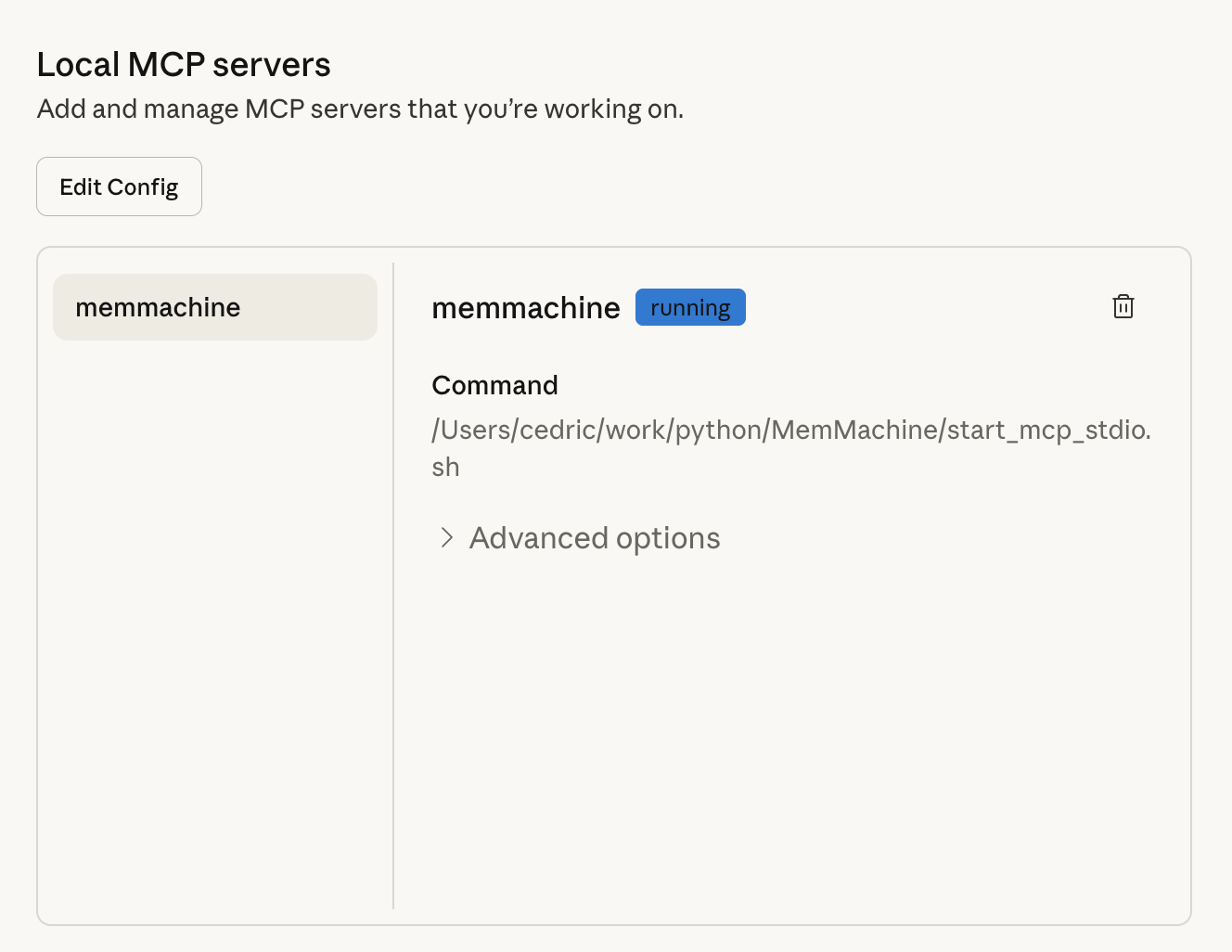
8. If you navigate to the `Developer` tab again, you should see `memmachine` as an option in the `MCP Server` dropdown.
 9. Add a Global Prompt in Claude Desktop
This step helps Claude consistently call MemMachine MCP in every conversation.
Claude Desktop lets you set a personal preference prompt. If you want Claude to use MemMachine MCP on every question, add the following line:
```
you MUST actively use MemMachine MCP on EVERY Question
```
**How to add it:**
1. Open Claude Desktop
2. Go to **Settings**
3. Click **General**
4. Find "What personal preferences should Claude consider in responses?"
5. Paste the sentence into the text box
6. Save your settings
7. If you want to connect to a MCP running in HTTP mode. You can replace the configuration with this:
```
{
"mcpServers": {
"memmachine-http": {
"command": "/Users/cedric/.nvm/versions/node/v20.19.5/bin/npx",
"args": [
"mcp-remote",
"http://localhost:8080/mcp",
"--allow-http",
"--header",
"user-id: user"
]
}
}
}
```
In which `localhost` and `8080` are the host and port where your MCP server is running.
`user` is the user ID you want to use for the session.
Note that you need node v20+ and npx installed to use the `mcp-remote` command. It basically acts as a proxy between
the Claude Desktop App and the MCP HTTP server.
Here is the list of supported headers you can pass to the MCP server:
* `user-id`: User ID for the session.
* `proj-id`: (Optional) Project ID, default to `mcp-` if not specified.
* `org-id`: (Optional) Organization ID, default to `mcp-universal`
11. If something went wrong, you will see an error message popup when you start Claude Desktop App.
You can also check the logs by clicking on `View Logs` button in the `Developer` tab.
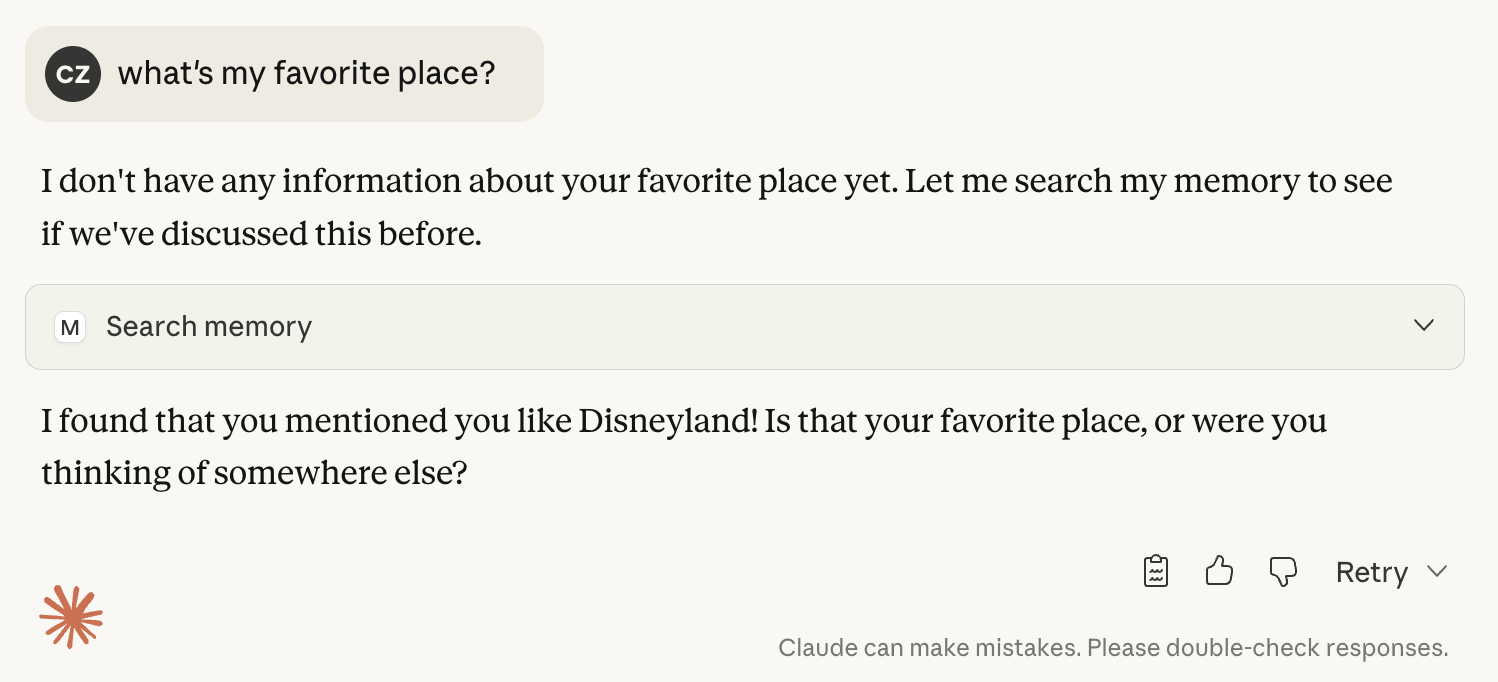
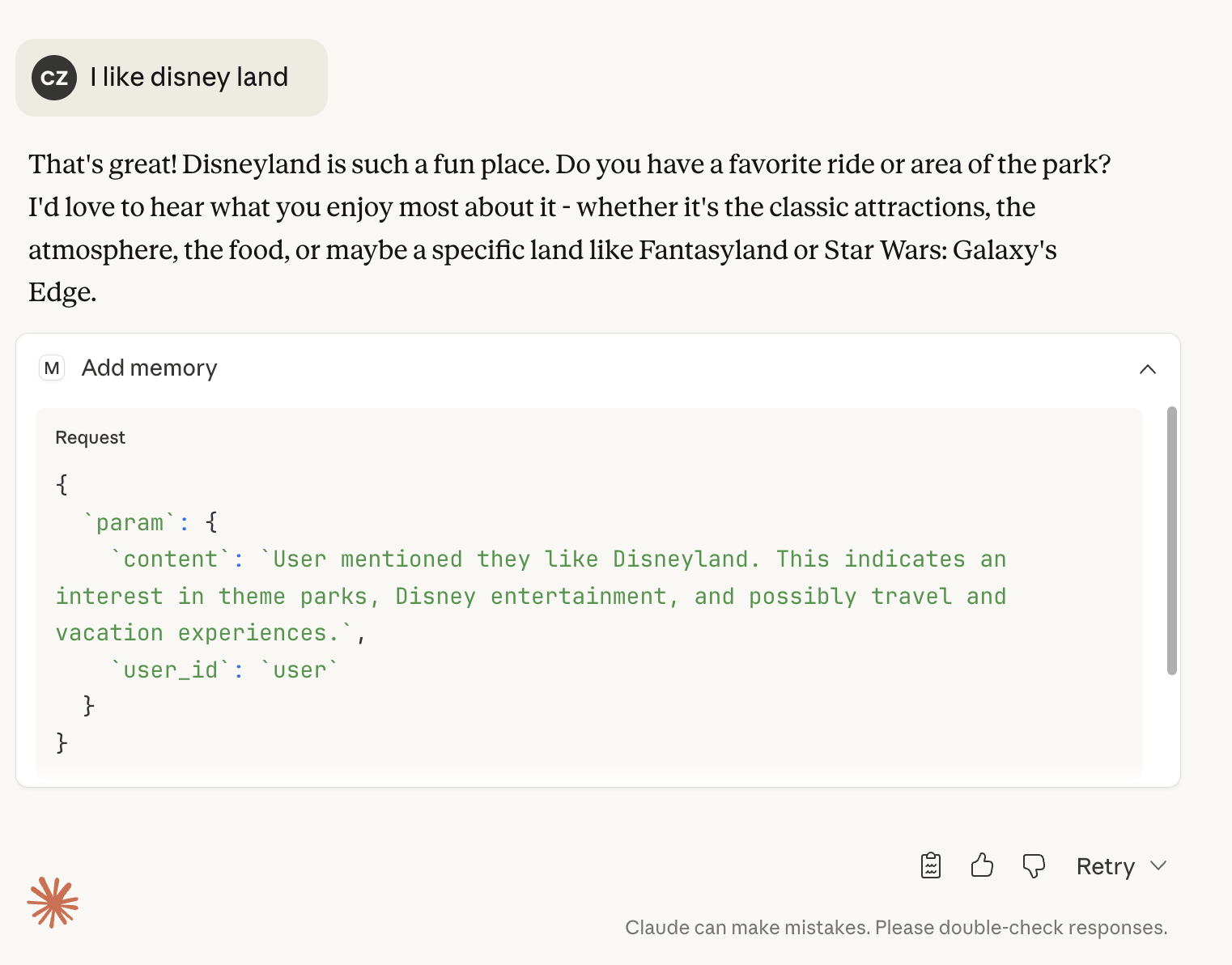
12. Now we can go back to the main screen and start a new conversation. You can say something like "I like Disneyland"
and Claude should be able to remember that in the next conversation. You may need to allow the model to call MCP for
the first time.
9. Add a Global Prompt in Claude Desktop
This step helps Claude consistently call MemMachine MCP in every conversation.
Claude Desktop lets you set a personal preference prompt. If you want Claude to use MemMachine MCP on every question, add the following line:
```
you MUST actively use MemMachine MCP on EVERY Question
```
**How to add it:**
1. Open Claude Desktop
2. Go to **Settings**
3. Click **General**
4. Find "What personal preferences should Claude consider in responses?"
5. Paste the sentence into the text box
6. Save your settings
7. If you want to connect to a MCP running in HTTP mode. You can replace the configuration with this:
```
{
"mcpServers": {
"memmachine-http": {
"command": "/Users/cedric/.nvm/versions/node/v20.19.5/bin/npx",
"args": [
"mcp-remote",
"http://localhost:8080/mcp",
"--allow-http",
"--header",
"user-id: user"
]
}
}
}
```
In which `localhost` and `8080` are the host and port where your MCP server is running.
`user` is the user ID you want to use for the session.
Note that you need node v20+ and npx installed to use the `mcp-remote` command. It basically acts as a proxy between
the Claude Desktop App and the MCP HTTP server.
Here is the list of supported headers you can pass to the MCP server:
* `user-id`: User ID for the session.
* `proj-id`: (Optional) Project ID, default to `mcp-` if not specified.
* `org-id`: (Optional) Organization ID, default to `mcp-universal`
11. If something went wrong, you will see an error message popup when you start Claude Desktop App.
You can also check the logs by clicking on `View Logs` button in the `Developer` tab.
12. Now we can go back to the main screen and start a new conversation. You can say something like "I like Disneyland"
and Claude should be able to remember that in the next conversation. You may need to allow the model to call MCP for
the first time.
 13. Restart the Claude Desktop App and start a new conversation. Ask about your favorite places and see if Claude can
remember them.
13. Restart the Claude Desktop App and start a new conversation. Ask about your favorite places and see if Claude can
remember them.